How to Livestream an Event Professionally: Moving Beyond the Basic Webcam
You have an upcoming event to share with a remote audience—a conference, an expert panel, a corporate town hall, a charity gala, or a live performance. If you are responsible for bringing that experience online, you likely share one very specific, very valid fear: that your livestream will come across like a flat, laggy Zoom call, making your brand or organization look amateur in front of a valuable virtual audience.
You want the stream to look produced, and you are trying to understand what actually separates a professional event livestream from an amateur one.
The good news is that the gap between a shaky webcam feed and a broadcast-quality production comes down to a short, nameable list of technical upgrades. When an event stream looks like a standard video meeting, the culprits are always the same: a single static camera, tinny audio, flat lighting, and a buffering Wi-Fi connection. By treating your livestream as a real live production rather than a simple video call, you can create a dynamic, engaging experience that serves both your in-room attendees and your online viewers.
Here is exactly how to live stream an event professionally, from setting up the right camera angles to ensuring bulletproof internet reliability.
The Hero Fix: Multi-Camera Live Streaming
The single biggest factor that separates a broadcast-level stream from an amateur one is the use of multiple cameras switched live. A single static shot—usually captured from the back of the room on a smartphone or a basic DSLR propped on a tripod—is the number-one tell of an amateur stream. It forces the remote audience to stare at the exact same frame for hours, which inevitably leads to viewer drop-off.
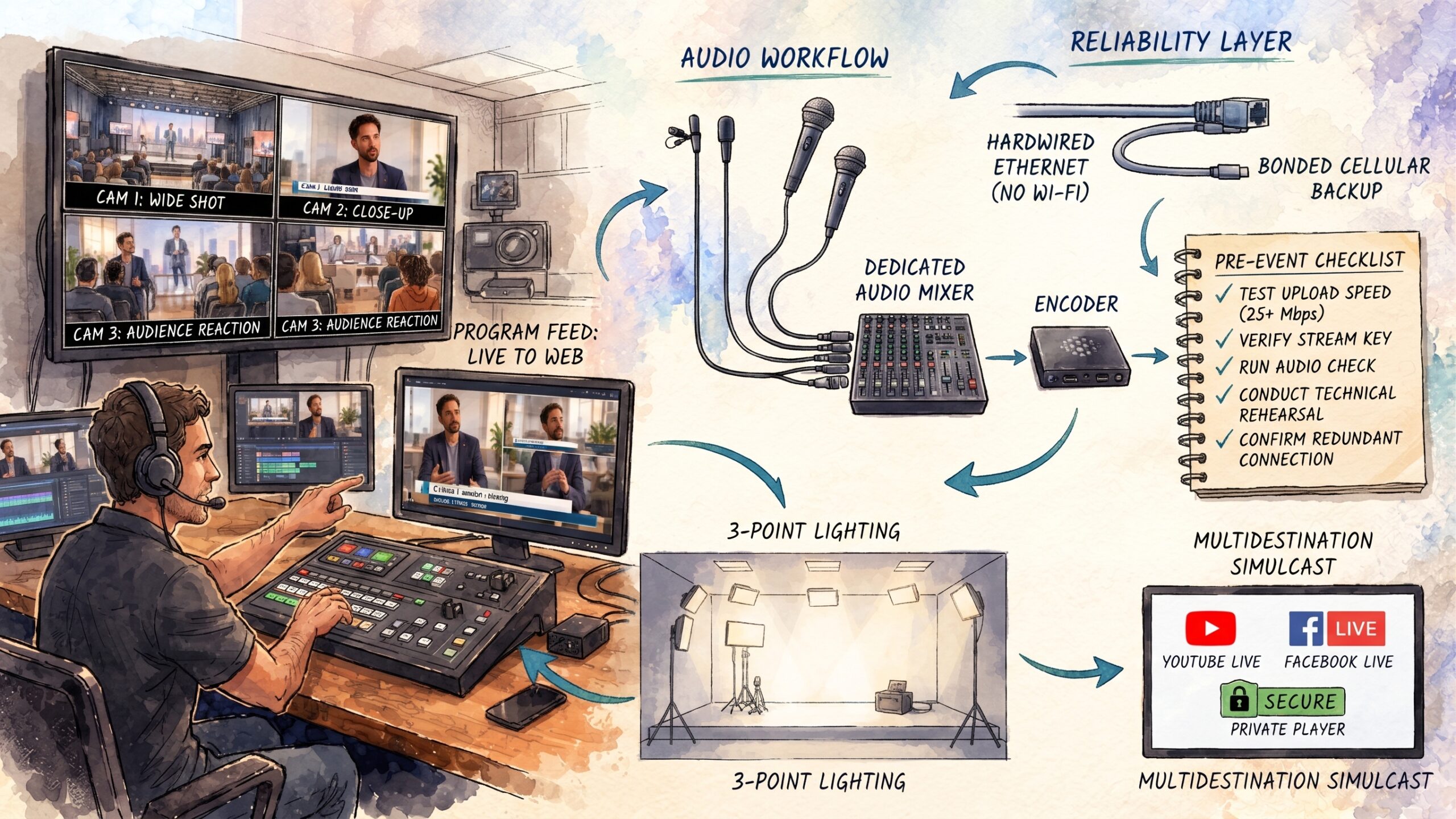
Produced streams rely on multi-camera live streaming to keep the visual experience dynamic. For anything happening on a stage, a professional setup typically requires at least three distinct angles:
- The Wide Shot: This captures the entire stage, providing context and showing the relationships between multiple speakers or performers.
- The Close-Up: A tight shot focused directly on the active speaker, capturing their facial expressions and establishing a direct connection with the remote audience.
- The Audience Reaction Angle: A camera positioned to show the in-room attendees, which helps virtual viewers feel like they are part of a shared, lively environment.
During the event, a technical director uses a video switcher to cut between these professional cameras—whether they are manned broadcast cameras or robotic PTZ (pan-tilt-zoom) units—in real time. The extra angles are what make a stream feel truly produced. If you want to see how dynamic live switching elevates a broadcast, our Film & TV Production team utilizes these exact multi-camera techniques to keep viewers engaged from the first minute to the last.
Audio: The Non-Negotiable Element of Event Livestreaming
In the world of video production, there is a well-established rule: viewers will forgive a slightly imperfect picture long before they will forgive bad sound. If your video is crystal clear but your audio is echoing, muffled, or dropping out, your audience will simply close the window.
A professional audio feed requires a broadcast-quality microphone on every single speaker. Relying on the built-in microphones on your video cameras is a recipe for disaster. The cameras are usually positioned too far away from the stage, resulting in a hollow, distant sound that picks up every cough and chair squeak in the room. Furthermore, a common mistake amateur streamers make is leaving multiple camera microphones active at the same time, which causes a distracting echo.
Instead, route all audio through a dedicated audio mixer. Use wireless lavalier microphones for presenters who need to move around the stage, or wired handheld microphones for panel discussions and audience Q&A sessions. Send a clean, mixed audio feed directly from the venue’s sound board into your streaming setup.
The Reliability Layer: Internet, Encoders, and Redundancy
This is the unglamorous reliability layer of event livestreaming, but it is exactly what keeps your stream from buffering, freezing, or dropping offline at the worst possible moment.
A reliable professional event streaming setup begins with a wired Ethernet connection. Never rely on venue Wi-Fi for a high-stakes livestream. Wi-Fi networks are notoriously unstable, especially when hundreds of attendees walk into the room and their smartphones automatically connect to the network, draining the available bandwidth.
For a solid 1080p stream, plan for at least 20–25 Mbps of dedicated upload speed, and significantly more if you are pushing higher resolutions or running complex multi-camera setups.
Professional streams also rely on redundancy. If the venue’s primary internet line goes down, your stream goes dark. Always have a backup connection ready, such as a bonded cellular internet solution or a secondary dedicated hardline.
Finally, you need an encoder—the technology that takes your video and audio signals and translates them into a format the internet can broadcast. While software encoders (like OBS Studio) installed on a powerful laptop are popular, hardware encoders provide a dedicated, crash-proof solution that broadcast professionals trust to keep the stream running smoothly.
Lighting and Hybrid Framing
Lighting rounds out the visual presentation. You do not need a Hollywood-level lighting grid, but you do need consistent illumination that separates your subjects from the background.
Basic three-point lighting principles apply here. Use LED panels to provide an even wash of light across the stage, eliminating harsh shadows. Ensure there is adequate fill light for the close-up shots so your speakers’ faces are clearly visible on camera. A quick investment in proper stage lighting instantly elevates the stream from “flat and corporate” to polished and professional.
You also need to consider hybrid framing. Today’s events must simultaneously serve the in-room audience and the remote audience. Ensure your camera placements do not block the sightlines of your physical attendees, and make sure your on-stage lighting does not wash out the presentation slides projected in the room.
Reaching Your Audience: Media Distribution
Once you have a pristine audio and video feed, you need to deliver it to your viewers. Choosing the right live streaming platform depends entirely on your goals. If you want maximum public reach, streaming to YouTube Live or Facebook is highly effective. If you are hosting a private corporate town hall or a ticketed event, you will need a secure, white-labeled video player with access controls.
Through simulcasting, you do not have to choose just one destination. You can push your stream to multiple platforms simultaneously, reaching your audience wherever they already spend their time. For strategies on reaching and growing your online viewership, explore our Media Distribution capabilities.
The Pre-Event Professional Streaming Checklist
Before you ever press the “Go Live” button, run through this practical checklist to ensure your technical foundation is solid:
- Test the Upload Speed: Run a speed test on the exact wired network you will use, verifying you have a sustained 20–25 Mbps upload speed minimum.
- Verify the Stream Key: Check that your streaming software is communicating perfectly with your chosen live streaming platform.
- Run an Audio Check: Listen to the master audio feed through closed-back headphones to catch any buzzing, echoes, or muted microphones.
- Conduct a Full Technical Rehearsal: Run a complete dry-run of the event exactly as it will happen live, practicing your camera cuts and graphic transitions.
- Confirm the Backup Connection: Test your bonded cellular or secondary internet line to ensure failover works instantly if the primary network drops.
When to Call the Professionals
None of the concepts outlined above are impossibly complicated to understand, but doing all of them well, live, with absolutely no second take, is a real production.
You can certainly piece the parts together for casual broadcasts. However, for anything high-stakes—a client-facing summit, a high-profile interview, or a large-audience gala—bringing in a production team is what guarantees the stream looks like a network broadcast rather than a webinar.
If you are looking for professional infrastructure without the overhead of owning it, The Studio is built to handle exactly these kinds of high-demand productions. Located within the NYC 30-mile zone on Long Island, Drake Media Studios is a working broadcast facility. We provide the 8,200-square-foot space, the broadcast-quality cameras, the audio mixing, the lighting, and the redundant connections necessary for flawless execution.
Whether you are bringing your event to our soundstages or need a seasoned crew to manage the technical complexities of your venue, our Theater & Live Events team is fully staffed, highly experienced, and ready to go.
Frequently Asked Questions
Q: Why does my livestream look like a Zoom call? A: Usually, it is because of a single static webcam, weak audio, flat lighting, and an unreliable Wi-Fi connection. Produced streams use multiple camera angles switched live, a dedicated microphone on each speaker, proper lighting, and a wired, redundant internet connection.
Q: How many cameras do I need to livestream an event? A: At least two or three for anything on a stage. This typically includes a wide shot, a speaker close-up, and an audience angle. These are switched live so remote viewers see a dynamic feed instead of one unchanging shot.
Q: What equipment do I need to livestream an event professionally? A: You need professional cameras (not webcams), a video switcher, an audio mixer with broadcast-quality microphones, LED lighting, a hardware or software encoder, and a reliable wired internet connection, ideally with a backup line for redundancy.
Q: What internet speed do I need to live stream an event? A: For a solid 1080p stream, plan for at least 20–25 Mbps of dedicated upload speed, and more for multi-camera setups. Always test the venue’s actual upload speed ahead of time using a wired Ethernet connection, and have a backup connection ready.
Q: What’s the difference between a webcam stream and a broadcast-quality stream? A: A webcam stream is one fixed angle with basic, often hollow audio. A broadcast-quality stream switches between multiple professional cameras, uses dedicated microphones on every speaker, adds professional lighting and on-screen graphics, and runs on a reliable encoder and hardwired connection so it looks produced.
Q: Can you stream an event to YouTube, Facebook, and other platforms at once? A: Yes. This process is called simulcasting or multi-streaming. It allows you to push a single high-quality production feed to multiple social media channels and private video players simultaneously, letting you reach your audience wherever they are.